Features
What each feature does and how to use it, step by step. Every screenshot is the real product.
Dual subtitles and lookup
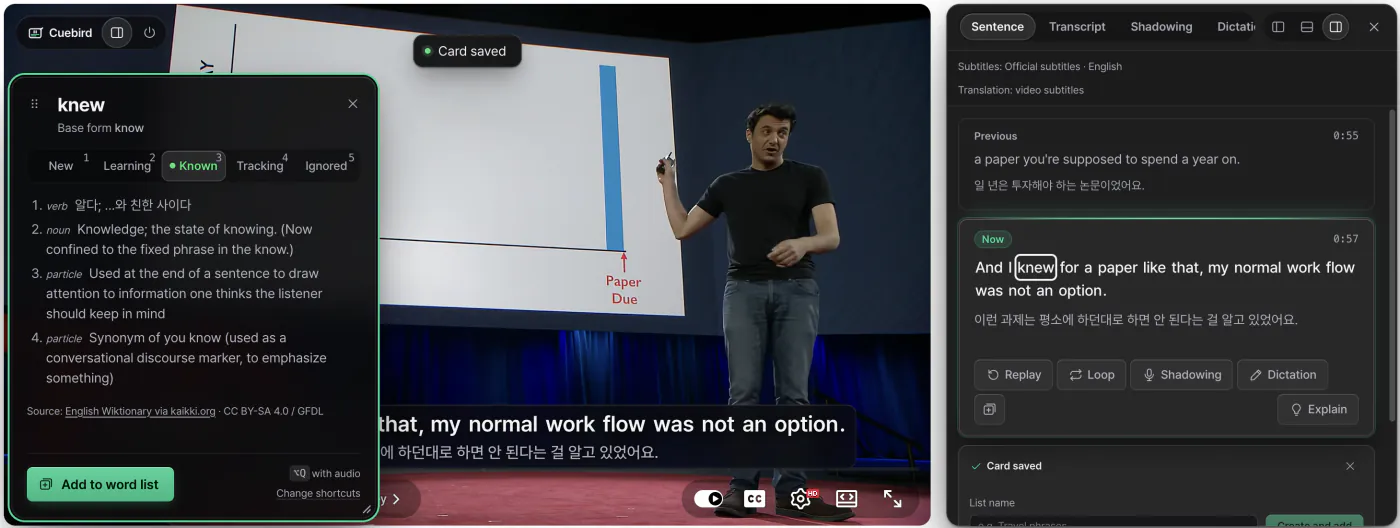
The translation sits under the original line. Click a word in a subtitle to see what it means in that sentence.
- In Settings, choose the language you’re learning and your language.
- Play a video with subtitles on a supported site. The site’s own subtitles are hidden and Cuebird’s appear instead.
- Click a word you don’t know. In the popup, set its status with 1–5 or press Add to word list.
- If the translation line gets in the way, hide it with C.
Where translations come from
Human-made translated subtitles are used first. If there are none, Cuebird tries free sources such as YouTube auto-translate and Chrome’s on-device translator, and only then our server. Server translation has a free daily allowance.
Word statuses
Unknown, learning, known, tracking and ignored. Once marked, words are told apart in every subtitle by colour and underline style, so new words stand out. The underline style differs too, so colour is never the only cue.
When subtitles can’t be loaded
Cuebird falls back to a subtitle file you attach (SRT, VTT, SMI, TTML), then the YouTube transcript, then the captions shown on screen. If none of these work, Alt+Shift+L transcribes the tab’s audio on your device as live subtitles (Chrome).
Study panel
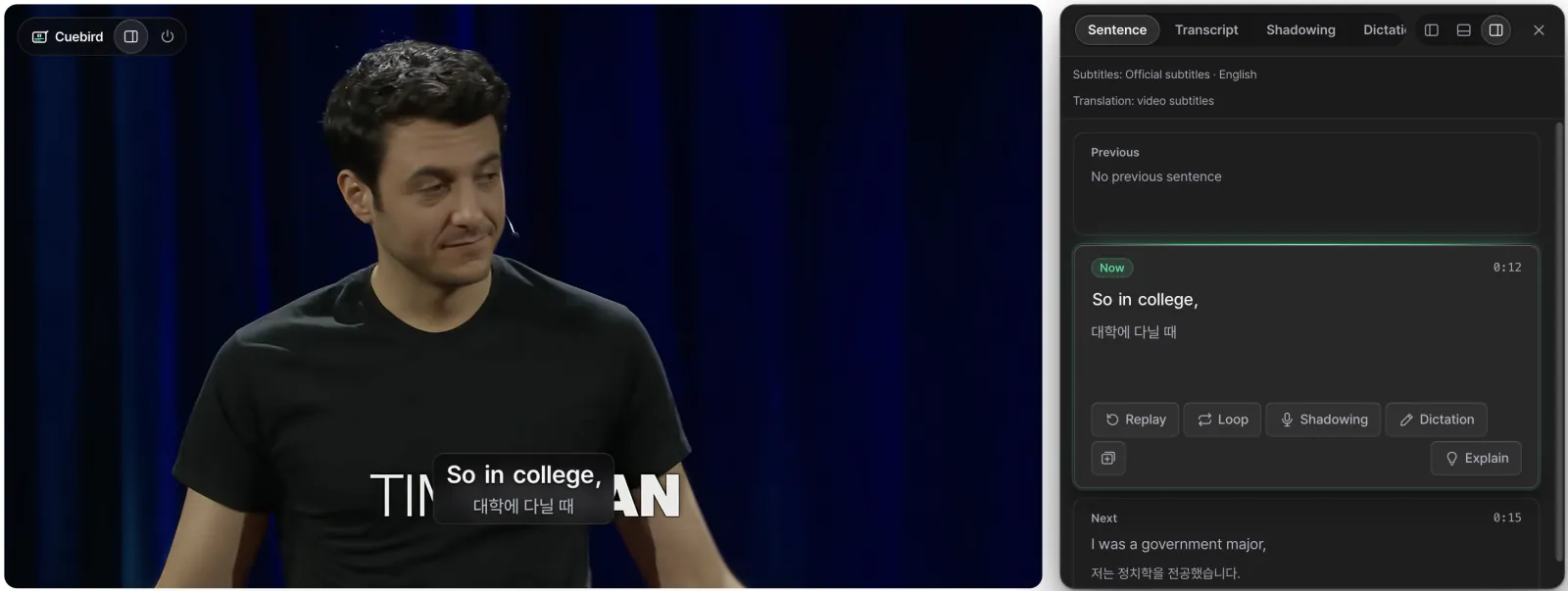
Beside (or below) the video you get the previous, current and next sentence with translations, in four tabs: sentence, transcript, shadowing and dictation.
- Open the panel with T or the Cuebird button at the top left of the video.
- In the sentence tab, use replay E, loop L and auto-pause P.
- The transcript tab lists every line in the video. Click one to jump there.
- Move the panel (right, below, inside the video) with the buttons in its header.
AI sentence explanations
When word meanings aren’t enough, AI explains the whole sentence in your native language: how it’s built, the grammar, and the tone.
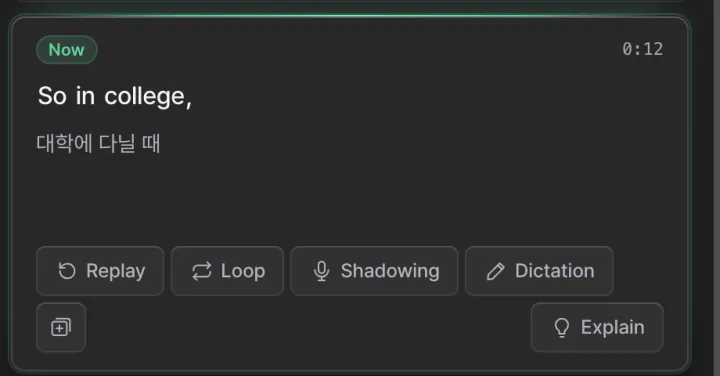
- Press Explain on the current-sentence card in the study panel, or on a flashcard.
- You get a natural translation, a phrase-by-phrase breakdown, grammar notes, key expressions and nuance (formal, casual, slang and so on).
- Focus an item in the breakdown and that part of the sentence is highlighted. Save any expression straight to a card.
Only the text of the sentence you ask about goes through the Cuebird server to an AI provider. There’s a daily limit, which is larger when you’re signed in. An explanation is kept and reused for the same sentence. Explanations are AI-written and can be wrong.
Shadowing
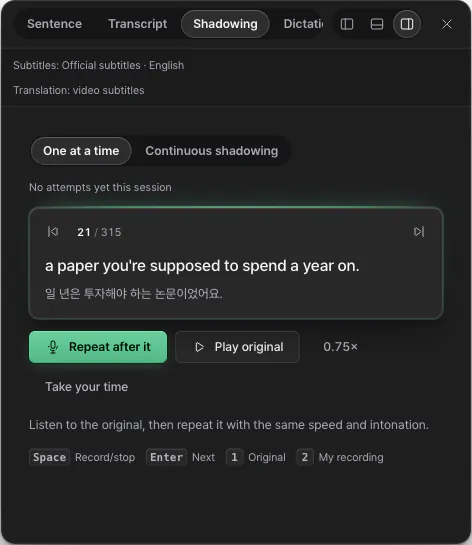
Listen to a line, say it back, and compare your recording with the original. What you said is scored word by word.
- Open the shadowing tab. Until you start, the practice line follows the video.
- Choose one at a time or continuous.
- The video pauses while you record. Afterwards you see matched, similar, missed and extra words, and a match score.
- Switch between play original and play my recording, and record again if you like.
Recognising what you said uses the browser’s speech recognition (Web Speech API). In Chrome your voice may be sent to Google’s speech service. The recording itself stays on your device. A notice appears on first use, and turning speech recognition off in Settings switches to record-only with self-grading. See Privacy for details.
Dictation
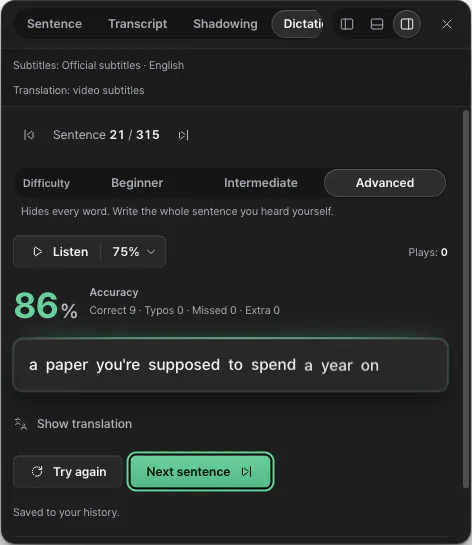
Write down what you hear. The on-screen subtitles hide while you answer.
- In the dictation tab, choose a level. Beginner blanks about 30% of content words, intermediate about 50%, and advanced asks for the whole sentence.
- Press Listen. The speed button next to it sets the listening speed from 10% to 100%.
- Each word is marked correct, typo, missed or extra, and you get an accuracy score.
Playback speed
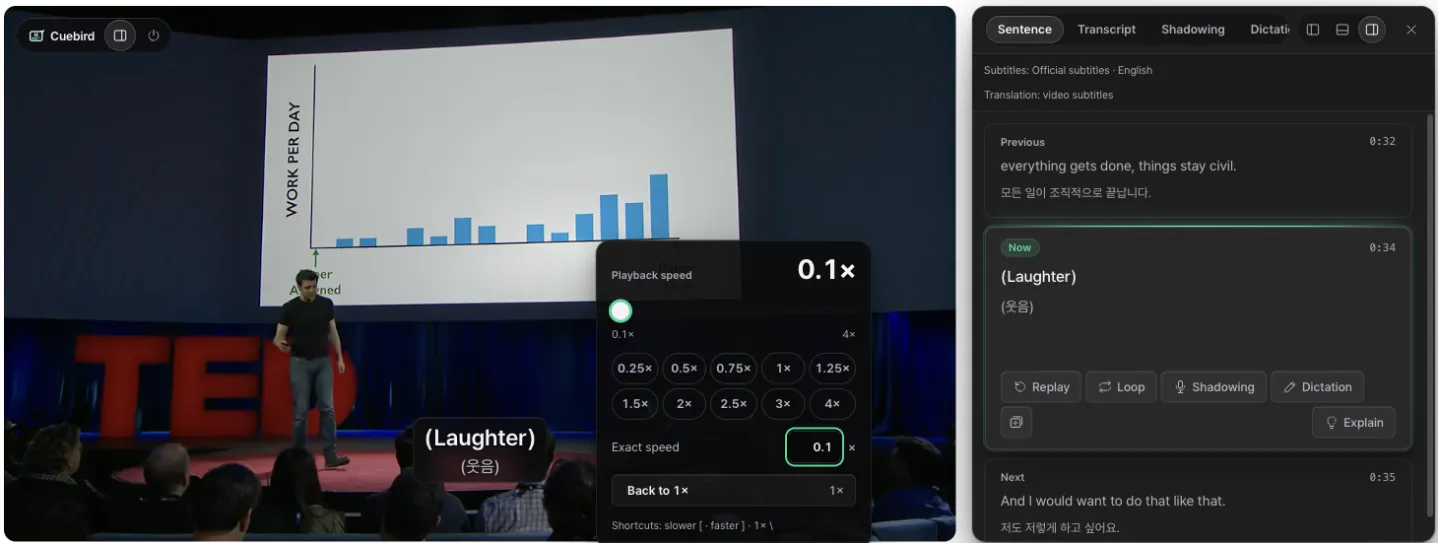
Anywhere from 0.1× to 4×. If another extension or the page quietly changes the speed, Cuebird switches it back to yours.
- The speed button on the control bar opens a slider, ten presets and a field for an exact value.
- [ slows down, ] speeds up, \ returns to 1×.
- Turn on Start new videos at 1× in Settings if you want every video to start at normal speed.
Cards and quizzes
Save lines worth remembering as cards. With Alt+Q, the line’s original audio and a video frame are saved too.
- Save the current line with Add to word list in the word popup, or with Alt+Q.
- Press Start review in the toolbar popup to see today’s cards, scheduled with FSRS spaced repetition. Space shows the answer and 1–4 rates it.
- In Card lists, pick a list, press Study as flashcards and choose a study mode.
| Mode | What you do |
|---|---|
| I know it / Don’t know | Check the answer and mark it yourself. |
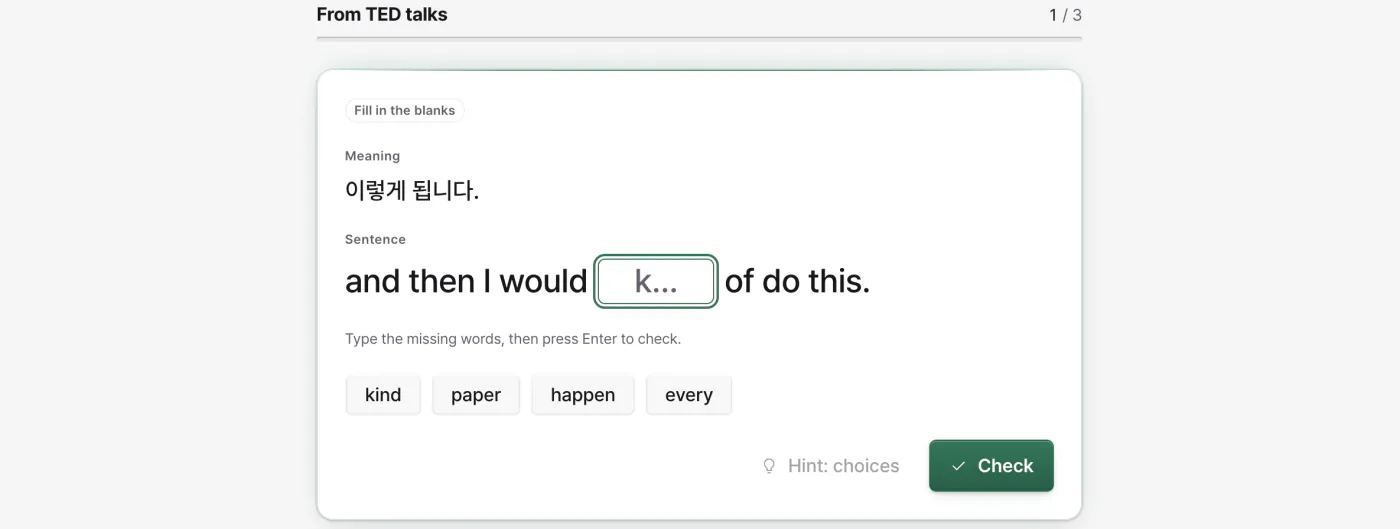
| Fill in the blanks | Type the missing words. Words you looked up are blanked first. |
| Word order | Put the shuffled words back in order. |
| Write it out | See the meaning and type the whole sentence. Mistakes are marked word by word. |
| Listen and write | Listen to the card’s audio and type the sentence. Cards without audio use write it out. |
| Say it | See the meaning and say the sentence aloud. Needs a microphone. |
| Mixed | Each card gets a quiz that suits it. |
| Adaptive | Word order → fill in the blanks → more blanks → listen and write. Know it and the card moves up; don’t, and it moves down. |
Card lists and Anki
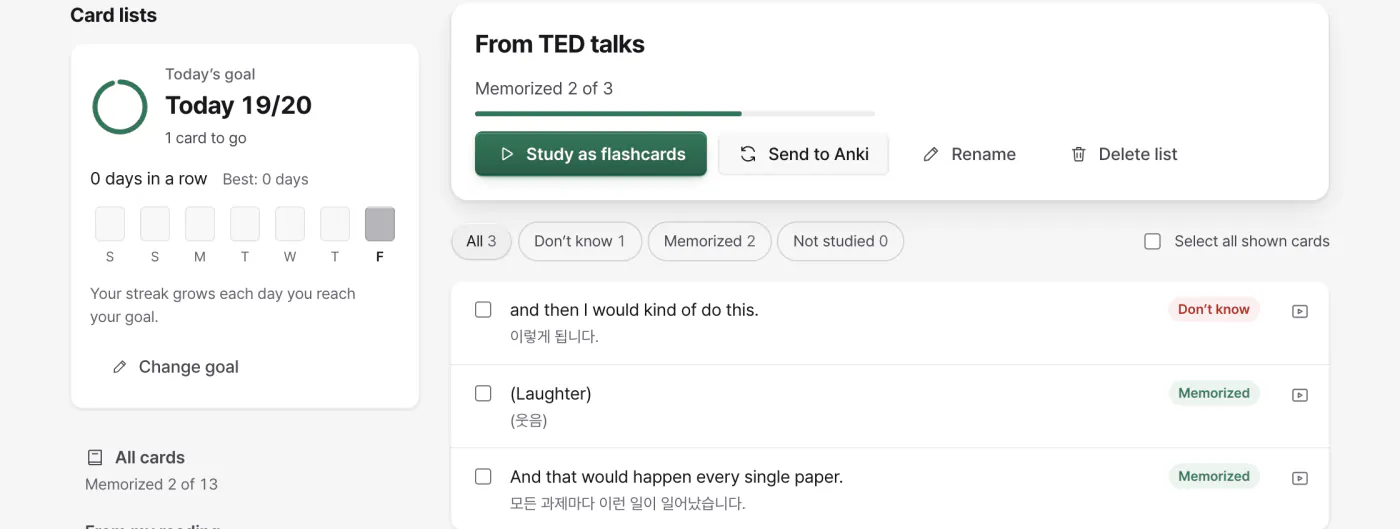
Group cards into lists by topic. Each list shows how many cards you’ve learned, and you can study only the ones you don’t know yet.
- In Card lists, create a new list and add cards.
- Filter by all, don’t know, learned, or not yet seen.
- Press Send to Anki. The list becomes one Anki deck, and other list names are added as tags.
Anki export needs Anki desktop with the AnkiConnect add-on running. The first time, your browser asks whether Cuebird may connect to Anki on your computer (127.0.0.1:8765). Cards already in Anki count as failed.
Daily goal and streak
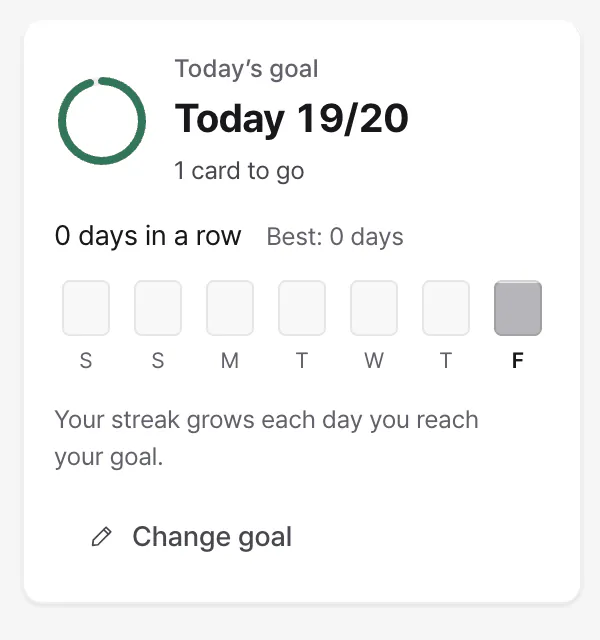
Decide how many cards to study a day. Each day you reach it extends your streak.
- In Card lists, open Today’s goal and press Change goal.
- Cards you finish in flashcards or quizzes count toward today.
- The last seven days show which days you reached your goal.
Reading mode for web articles
Open news stories, blog posts or Wikipedia articles in a clean reading view and study them with the same tools as video.
- On an article, click the extension icon and choose Reading mode in the popup, or press its shortcut.
- Cuebird pulls out the article text and works out its language from the page or the text itself. If it guesses wrong, change it at the top.
- Click words for their meaning, translate a sentence, or save it as a card. Turn on Translate every sentence to see a translation under each one.
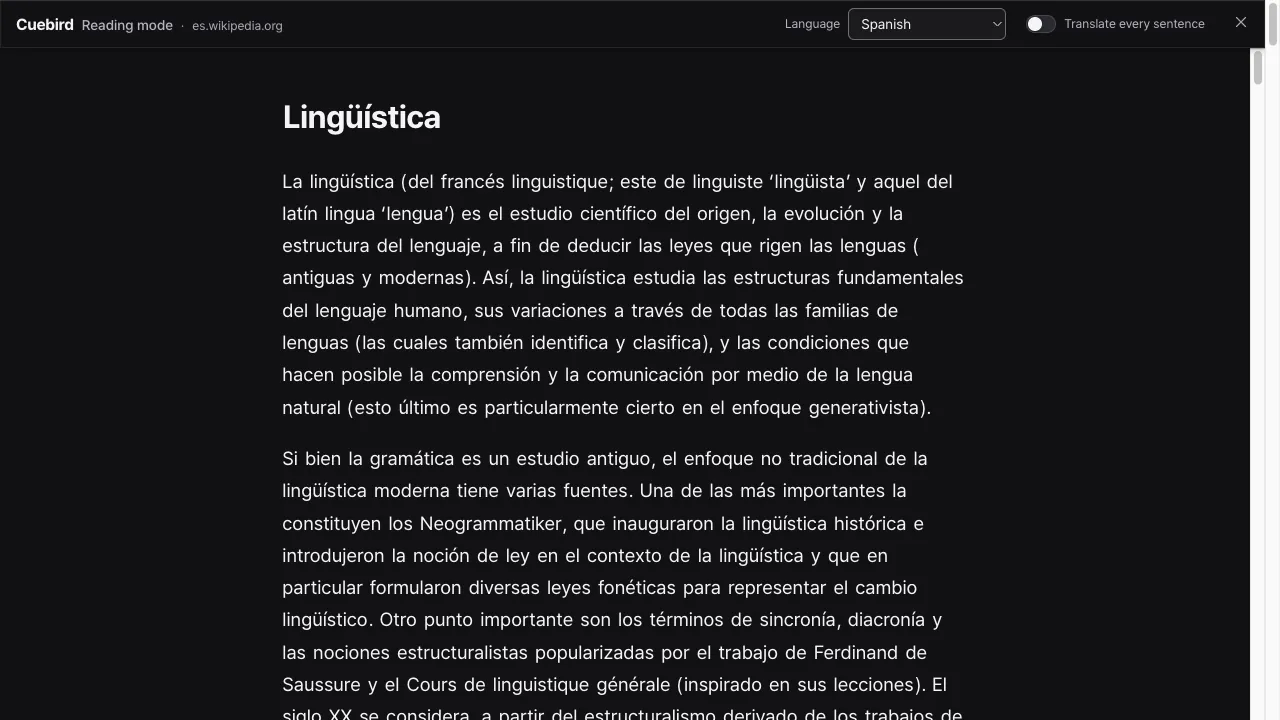
Reading mode only runs on a tab where you turn it on, so Cuebird doesn’t need permission to read every website.
My files and watch picks
Use the same tools with video and audio files you own. If a file has no subtitles, Whisper transcribes it on your device.
- Open Study my files from the toolbar popup or Settings.
- Drop in MP4, WebM, MP3, M4A, WAV and similar files. Add a subtitle file with the same name (SRT, VTT, SMI) to start studying right away.
- Without subtitles, press Create subtitles. You can study the finished part while it works, and pause and resume.
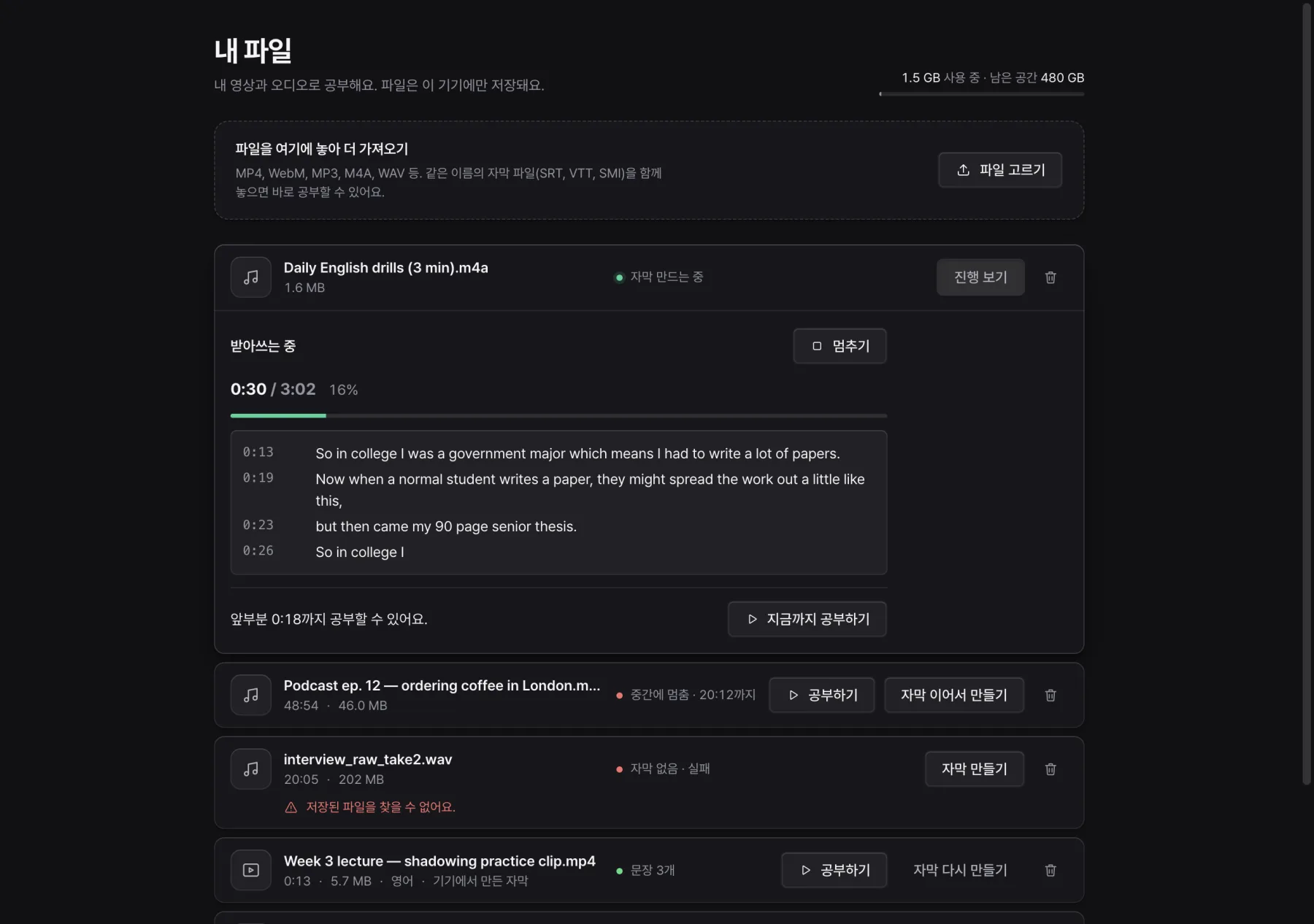
There are two transcription engines. On device keeps the audio on your computer. The server engine (Pro) sends the audio through our server to OpenAI. If your browser can’t transcribe on device, the server engine may be pre-selected, so check the engine before you start.
Watch picks
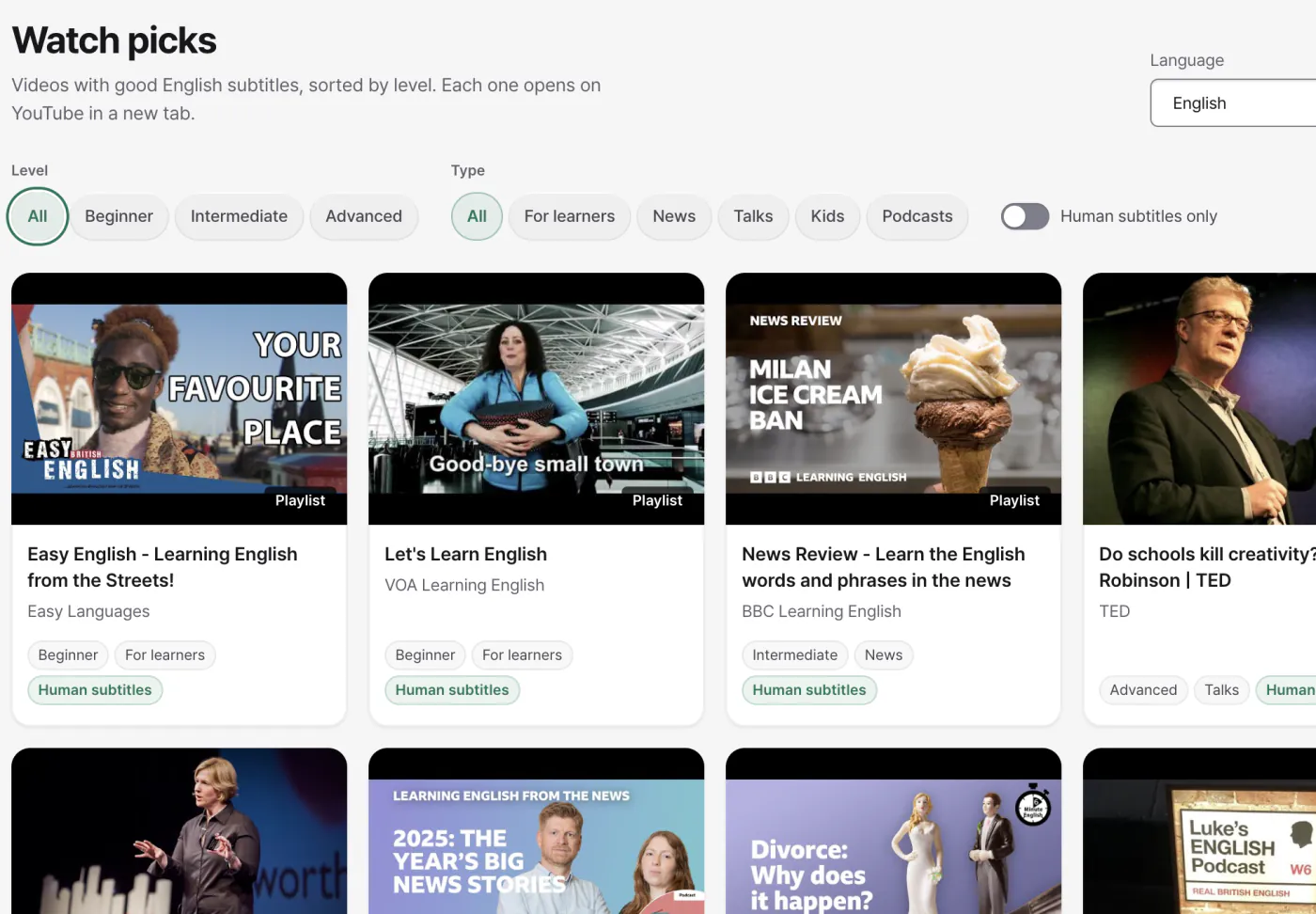
Not sure what to watch? Open Find something to watch in the popup. It lists YouTube videos with good subtitles in your language, sorted into beginner, intermediate and advanced, and into types such as learner content, news, talks, kids and podcasts. You can limit it to videos with human-made subtitles. For languages with few picks it links to a YouTube search with the subtitles (CC) filter on.
Your dictionaries (StarDict · MDict)
Import dictionary files you have, and their entries show up in the word popup. They work even with the server dictionary off or when you’re offline.
- Open Settings → My dictionaries.
- Drop the files in just as you downloaded them.
.tar.bz2,.tar.gzand.ziparchives, and folders holding several dictionaries, are read in one go. - Set each dictionary’s headword and definition language, and reorder them to change the order in the popup.
MDict 2.0 files are supported. MDict 3.0 and dictionaries locked to a registered user can’t be read yet. Dictionaries are copyrighted, so only import ones you’re allowed to use.
Languages and platforms
40 languages to learn and 20 interface languages. Features vary a little by language, and Settings tells you right under the language picker.
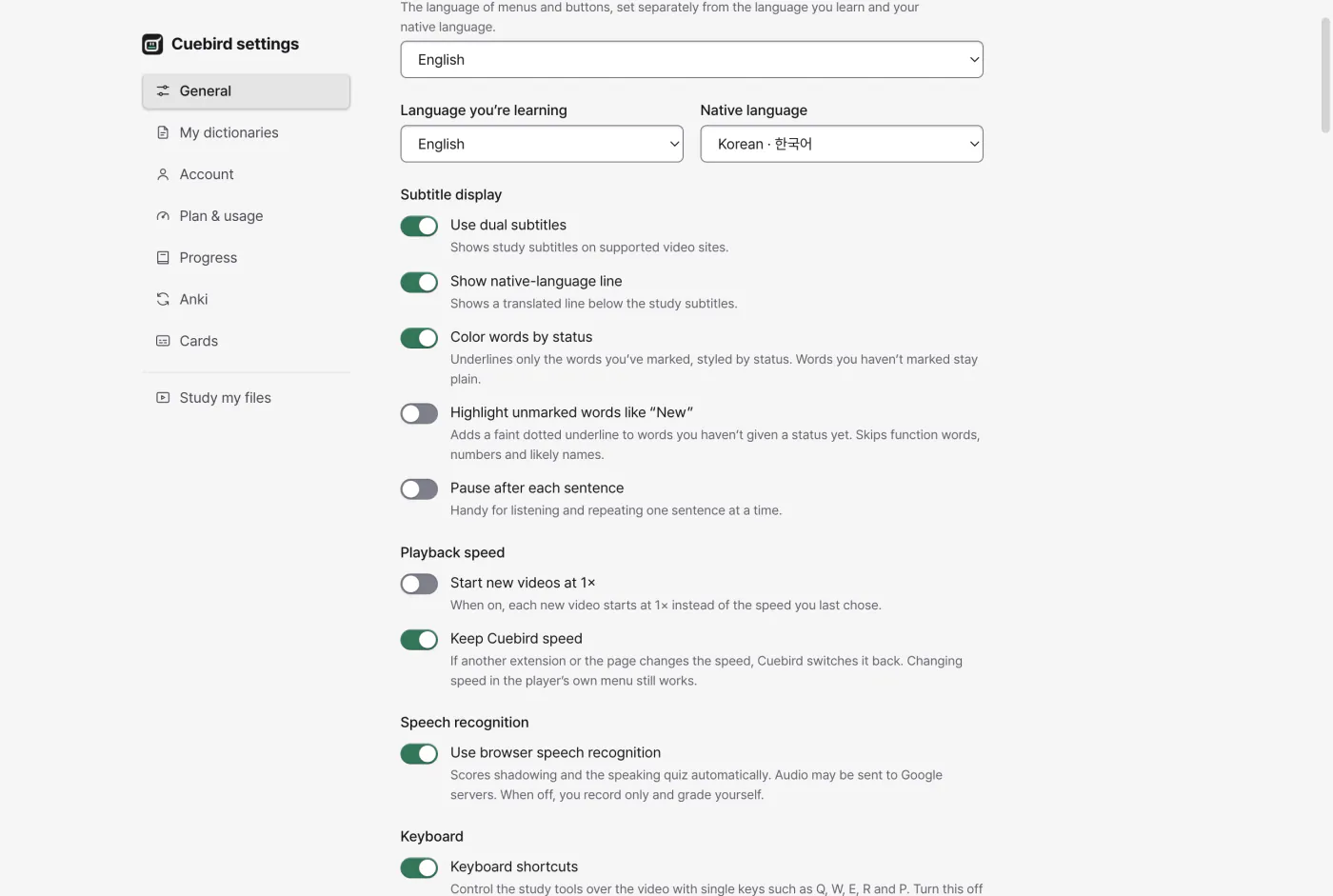
- Base forms: 16 languages, including English, Korean, Japanese, Spanish and Arabic, group inflected forms under one base form so a word has one status.
- Offline dictionary: the built-in Wiktionary-based dictionary covers headwords in 19 languages. Other languages get a word translation instead.
- Chrome on-device translation: for documented language pairs, translation happens without our server.
Supported sites are YouTube, Netflix, Disney+, Prime Video and Apple TV+, plus the Korean services TVING, Wavve, Coupang Play and Watcha. YouTube and your own files are checked on real playback; the rest are being checked with subscriptions.
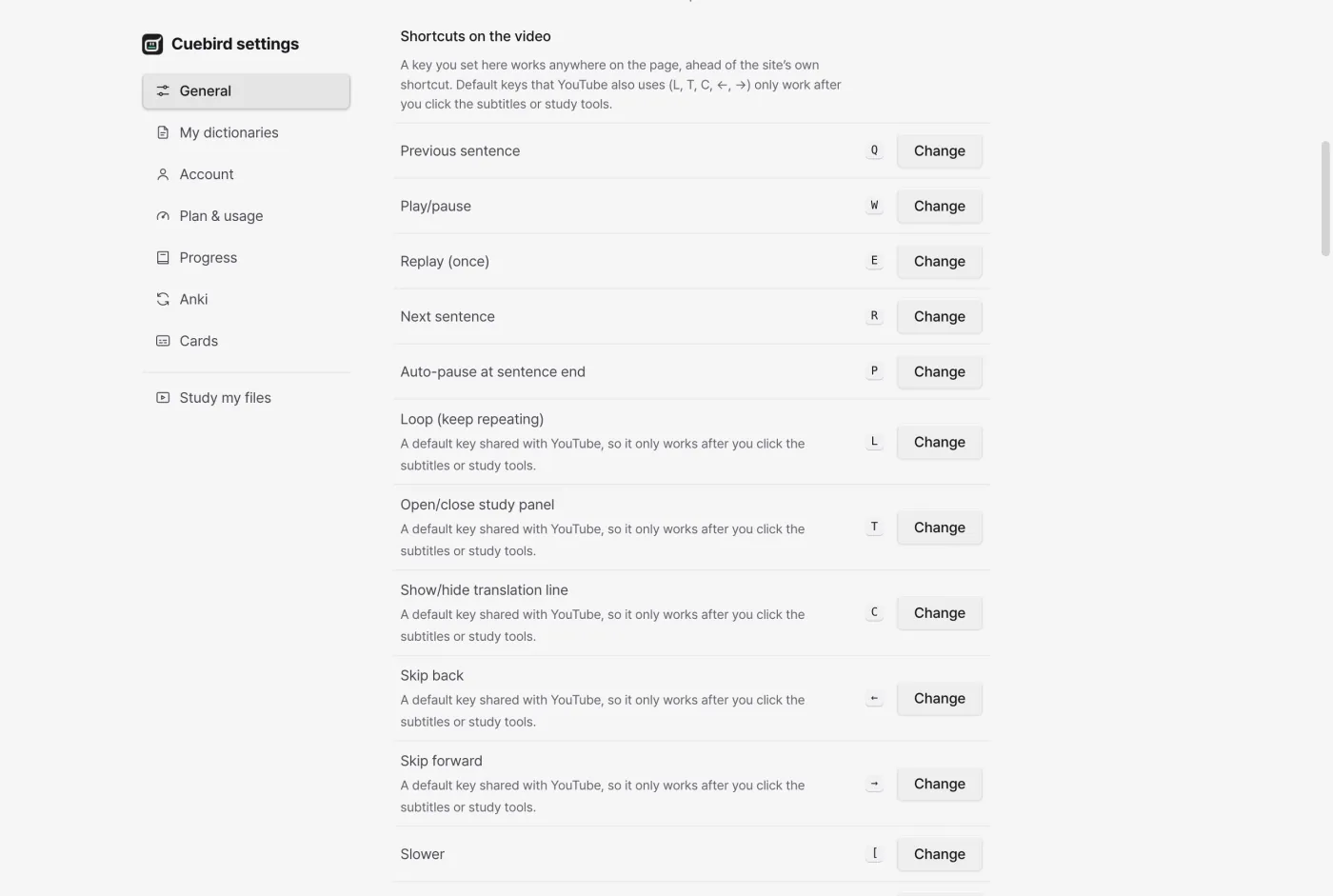
Keyboard shortcuts
Everything can be done from the keyboard. Keys follow their physical position, so they work with any keyboard layout or input method.
| Action | Default key |
|---|---|
| Previous sentence | Q |
| Play / pause | W |
| Replay once | E |
| Next sentence | R |
| Toggle auto-pause at end of line | P |
| Loop current line | L |
| Open or close the study panel | T |
| Show or hide the translation line | C |
| Skip back / forward | ← → |
| Slower / faster / back to 1× | [ ] \ |
| Action | Default key |
|---|---|
| Save the current line as a card with audio and frame | Alt+Q |
| Turn the subtitle overlay on or off | Alt+Shift+S |
| Live subtitles from tab audio (Chrome) | Alt+Shift+L |
| Screen | Action | Keys |
|---|---|---|
| Word popup | Unknown · Learning · Known · Tracking · Ignored | 1–5 |
| Review | Show answer, then replay audio | Space |
| Review | Rate how well you remembered | 1–4 |
| Flashcards | Show answer | Space / Enter |
| Flashcards | Don’t know · Know it | 1 2 or ← → |
Default keys that clash with YouTube (L, T, C, ←, →) only go to Cuebird after you’ve clicked a subtitle or the study tools. Keys you set yourself are handled by Cuebird first, wherever the focus is.