Learn any language from what you already watch
A Chrome extension that shows original and translated subtitles together on YouTube, Netflix, Korean streaming services and your own video files.
No account neededNo ads or trackersProgress stays on your device
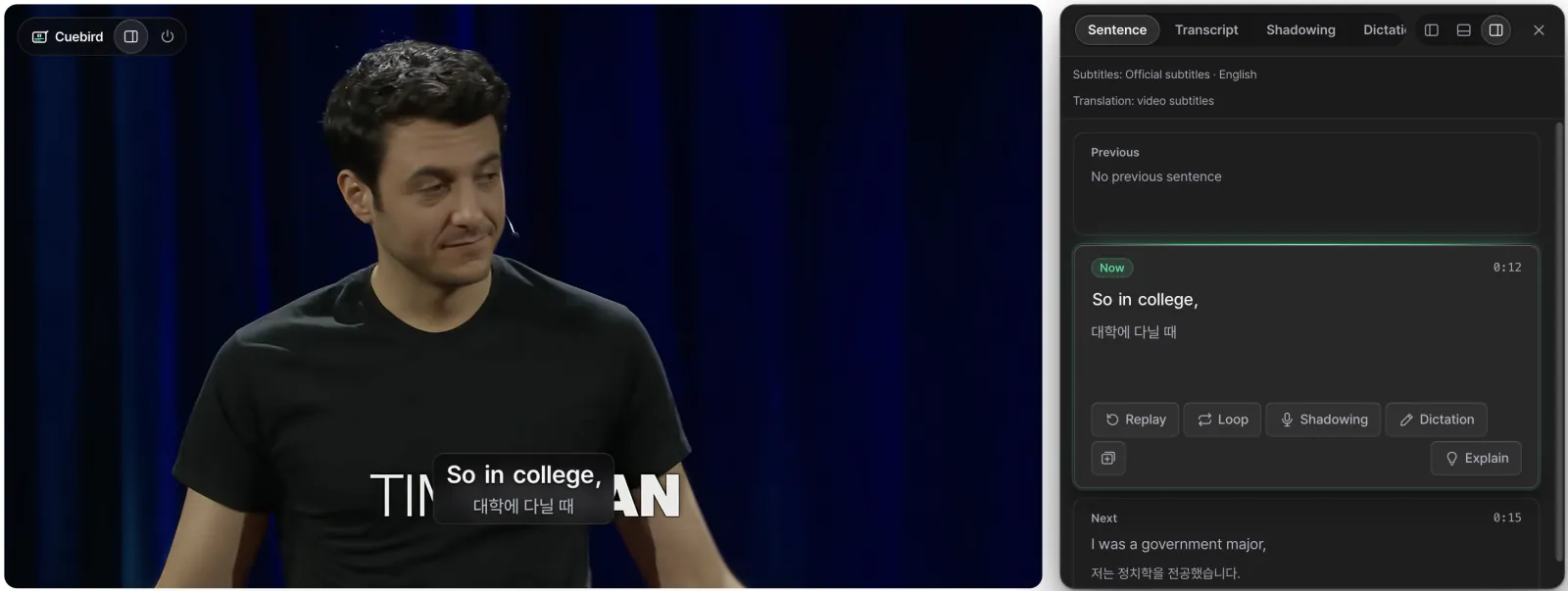
Works on
- YouTube
- Netflix
- Disney+
- Prime Video
- Apple TV+
- TVING
- Wavve
- Coupang Play
- Watcha
- Your video and audio files
- Web articles
You still need your own subscription to each service. How far each site has been checked is in the table below.
From one scene to a review card
Start from a word you don’t know and end with a quiz, without leaving the video.
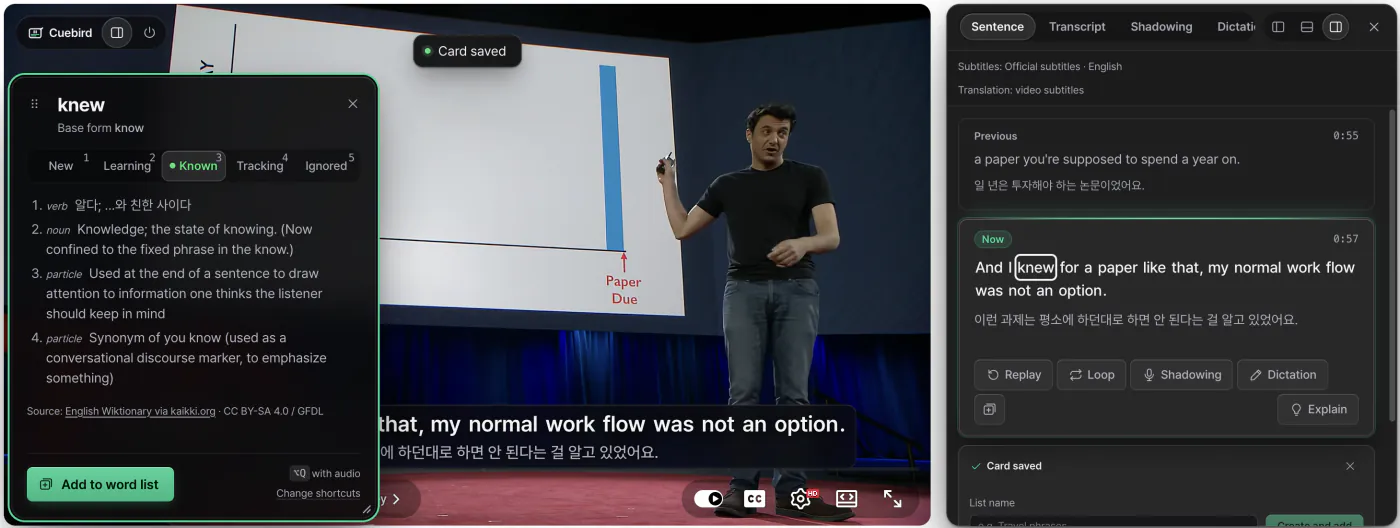
- Click a word in the subtitlesSee its meaning in context and its base form, and mark how well you know it.
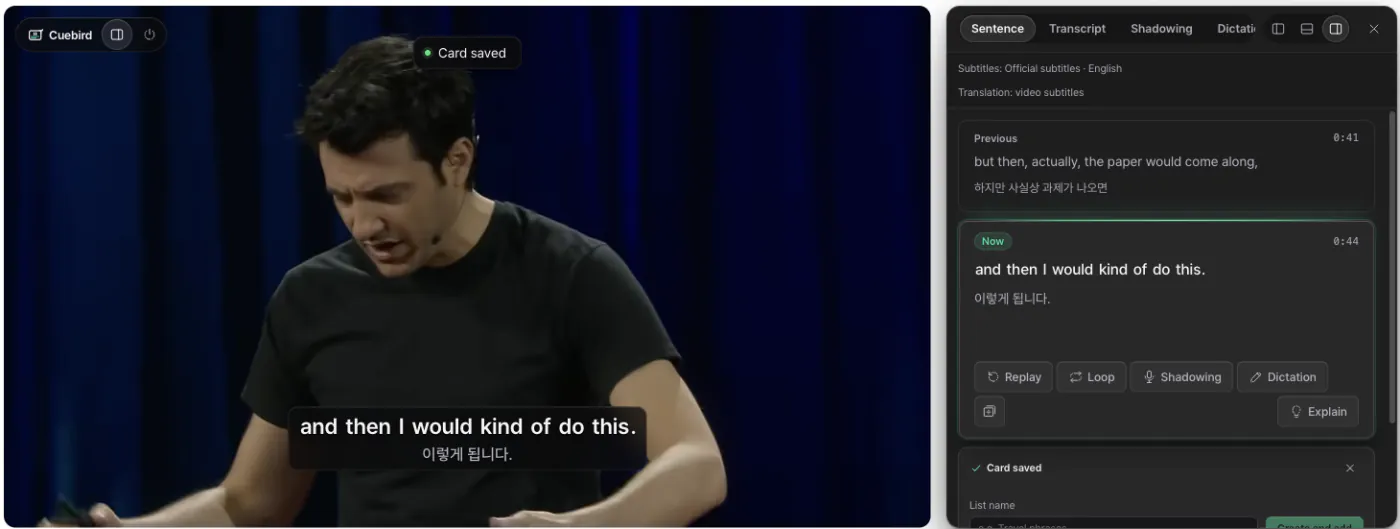
- Save the line as a cardSave from the popup or with Alt+Q and the card keeps that line’s audio and a frame of the scene.
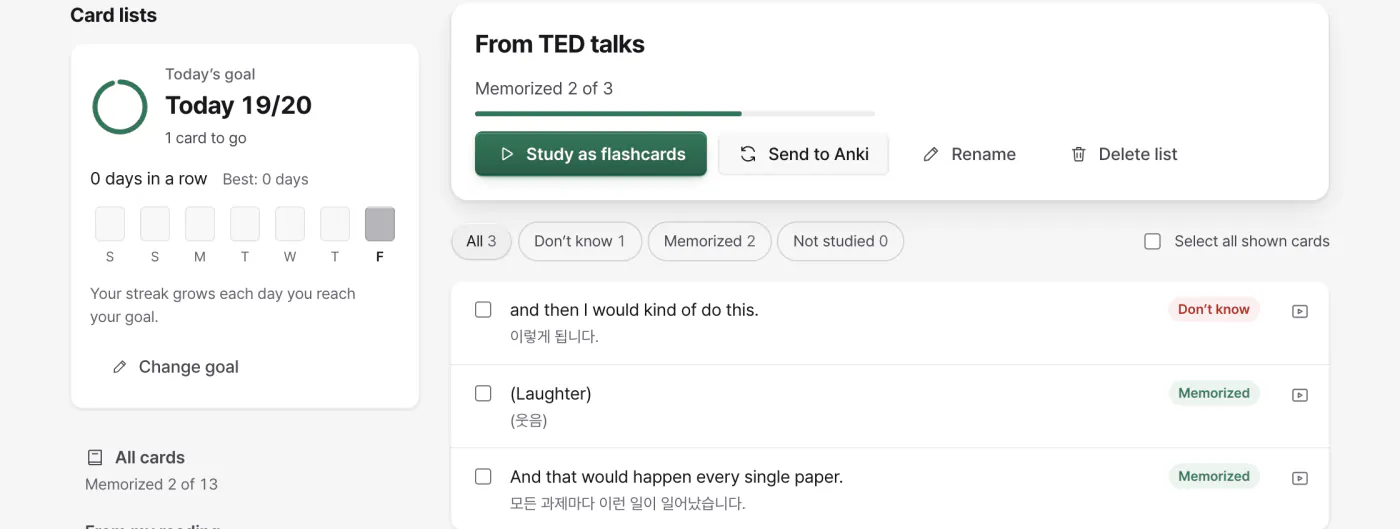
- Collect cards in listsGroup cards by topic and see which ones you know and which you don’t yet.
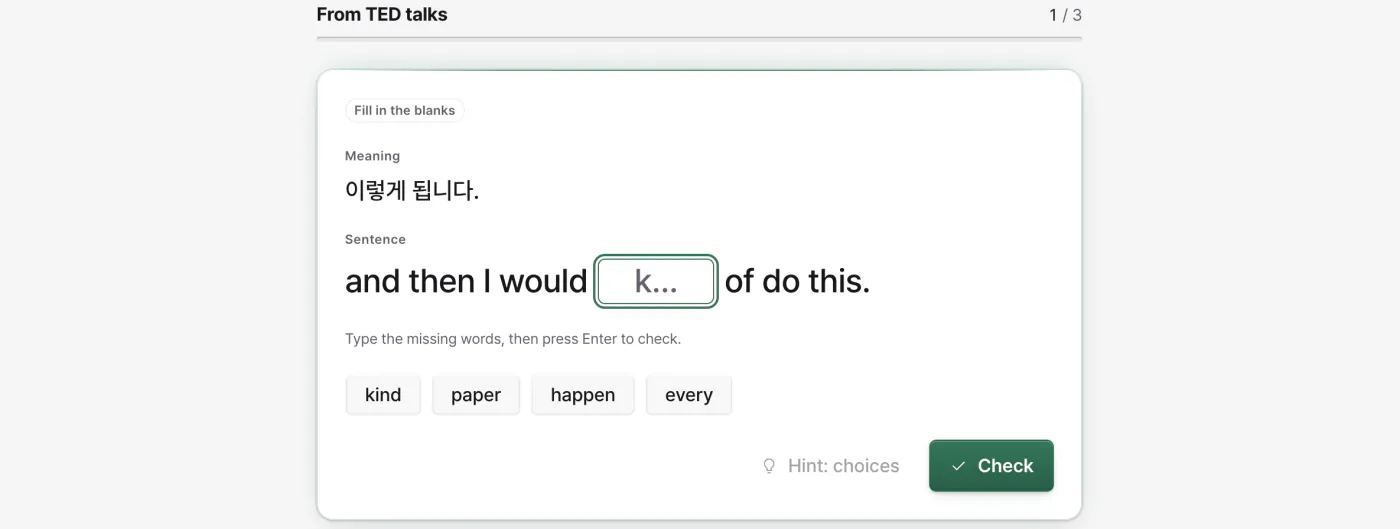
- Bring them back in quizzesReview in seven ways, from fill-in-the-blanks to word order and listen-and-type.
Not just for learning English
Pick the language you’re learning and your native language separately. Spanish speakers learning Japanese and Koreans learning English use the same tools.
Languages to learn
Spanish, Japanese, Chinese (Simplified and Traditional), Arabic, Hindi, Thai, Korean and more. Right-to-left scripts and languages written without spaces work the same way.
Interface languages
Choose the language for menus and buttons apart from the ones you’re learning and speak. Settings shows which features work for each language.
Playback speed
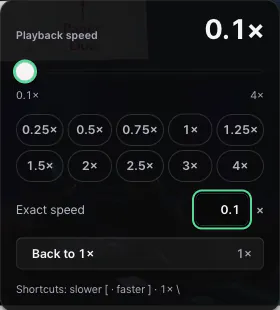
Slow a line right down, then jump back to 1×. If another extension changes the speed, Cuebird puts yours back. [ ] \ change it from the keyboard.
Tools for listening, speaking and reading
A study panel that holds one sentence still
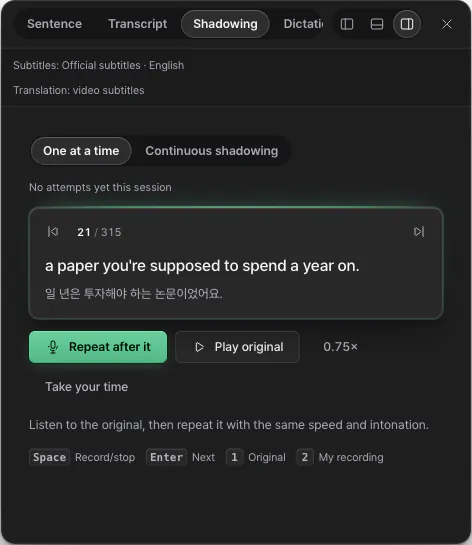
Replay the current line, say it after the speaker, or write down what you hear. The line you’re practicing stays put when the video moves on.
- Shadowing compares your recording with the original word by word and scores the match.
- Dictation blanks out words at beginner and intermediate levels, the whole line at advanced. Slow the audio to 10%.
Stuck on a sentence? Ask for an explanation
Press Explain in the study panel or on a card, and AI breaks the sentence down in your native language.
Explanations are written by AI and can be wrong. Only the sentence text goes to the server, and there’s a daily limit.
More about AI explanations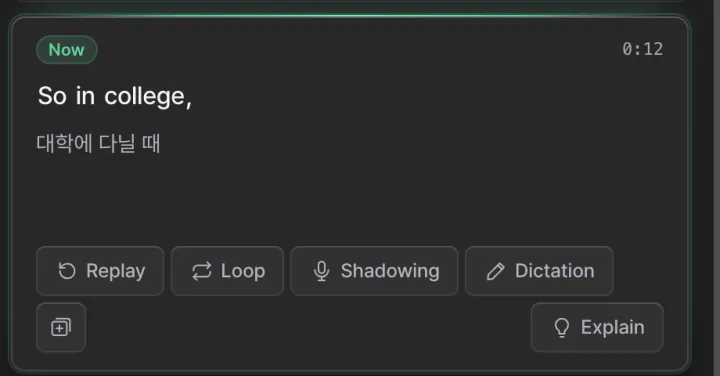
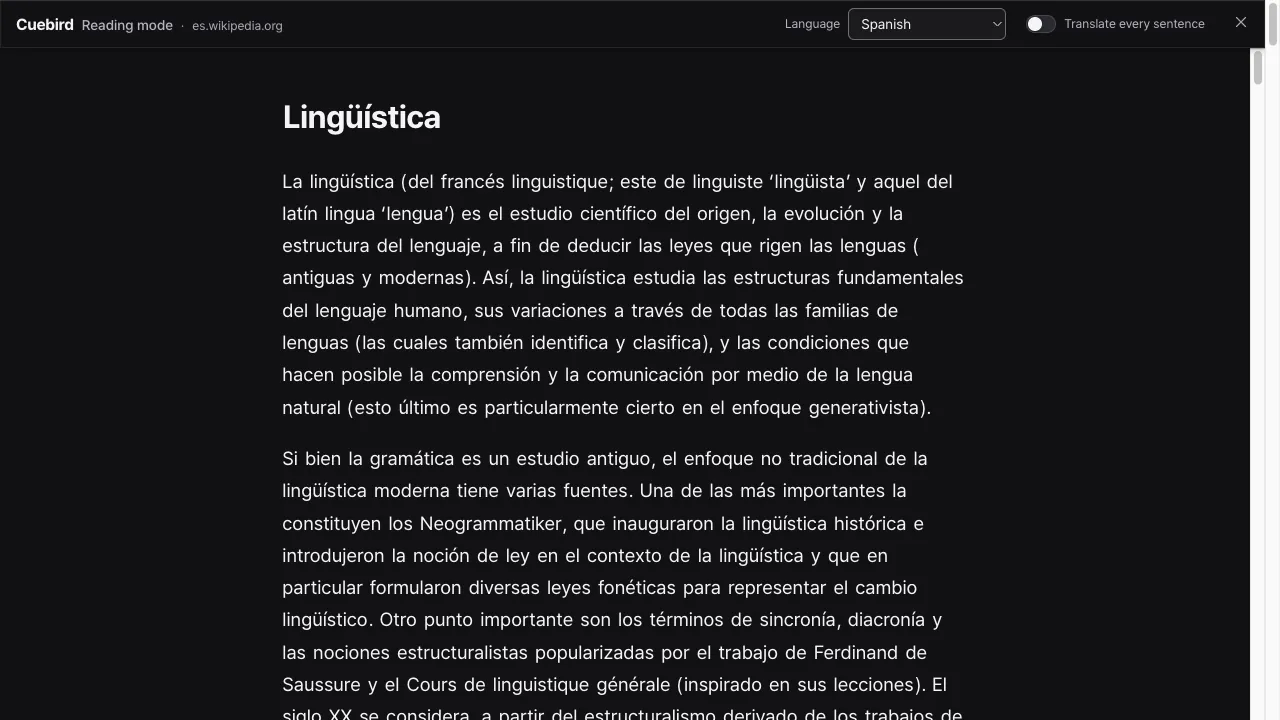
Read web articles the same way
Turn on Reading mode on a news story or blog post and the article opens in a clean view. Click words, translate sentences and save cards.
- It detects the page’s language and keeps right-to-left text the right way round.
- It runs only on a tab where you turn it on, so it doesn’t ask to read every site.
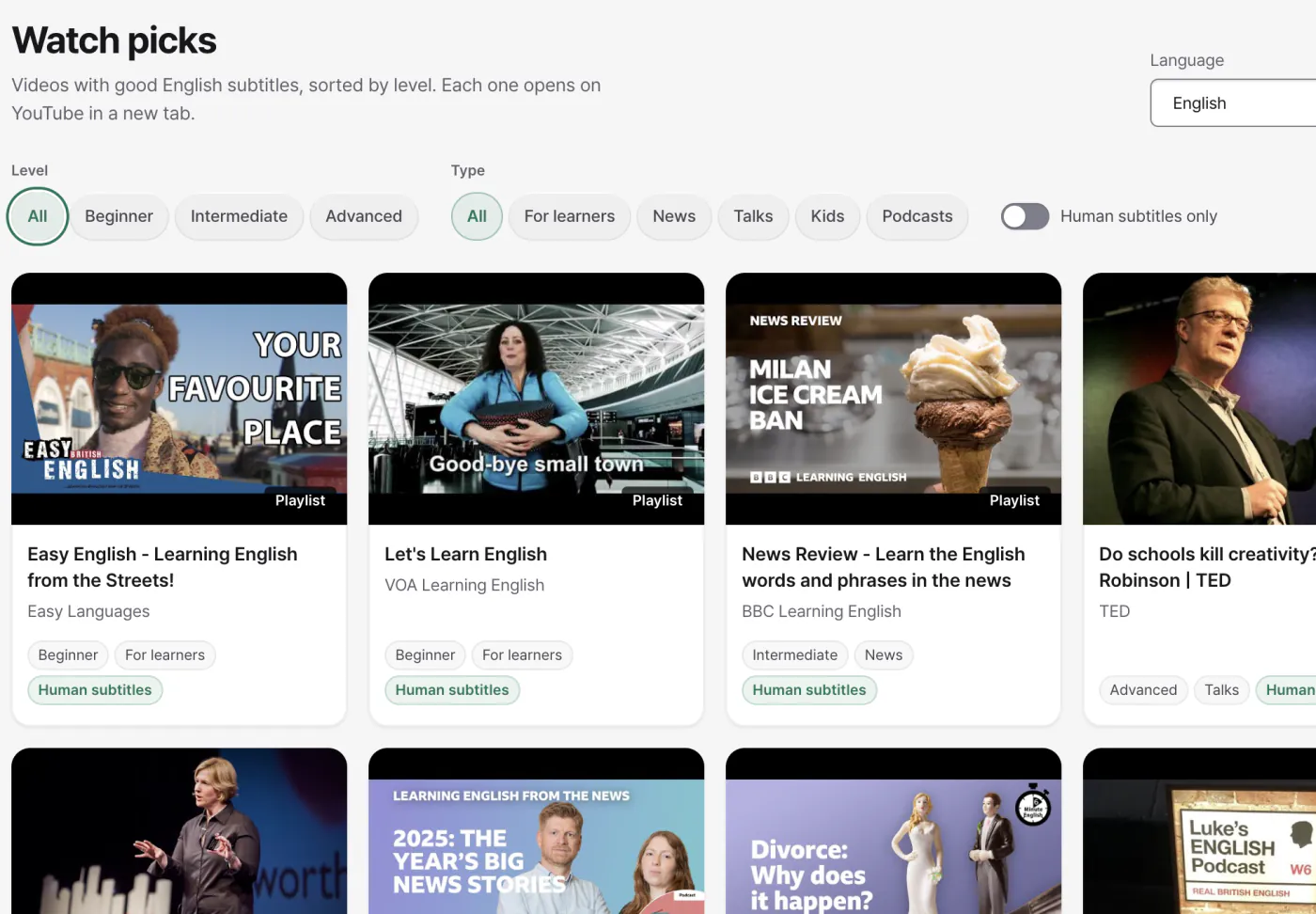
Not sure what to watch? Have your own files?
Watch picks lists videos with good subtitles in your language, sorted by level. Open your own video or audio files and Cuebird transcribes them on your device if they have no subtitles.
- Your files stay on this device. Whisper transcription runs on the device too.
- For a video whose subtitles can’t be loaded, live subtitles can be made from the tab’s audio (Chrome).
The steps you used to split across apps
Watching happened on the video site and vocabulary in a separate app. Cuebird keeps both on top of the video.
| Task | Built-in subtitles | Separate vocabulary app | Cuebird |
|---|---|---|---|
| Original and translated subtitles on one screen | Usually one language at a time | Not applicable | Both lines together |
| Look up a word from the subtitles | Search separately | Not applicable | Click it |
| Save a line with its audio and scene | Not available | Copy it over by hand | One shortcut |
| Replay one line, shadow it, write it down | Rewind by hand | Not applicable | In the study panel |
| Spaced-repetition review | Not available | Depends on the app | FSRS schedule |
| Study web articles the same way | Not applicable | Not applicable | Reading mode |
What’s free and what Pro will add
Every study feature is free. Only features that use our server have a daily allowance. A Pro plan is in the works and has no price yet.
No account
Free
- Dual subtitles, word lookup, study panel
- Shadowing, dictation, cards, seven quiz modes, Anki export
- Reading mode, on-device transcription of your files
- Server translation, lookups and AI explanations within a daily allowance
Free account
Free Sign in with an email code
- Everything without an account
- Word statuses and cards synced across computers
- A larger daily allowance for server features
Pro Coming
Price not set
- More room for server translation and lookups
- More AI explanations
- A server engine option for transcribing your files
Daily allowances reset at 00:00 UTC. Prices and exact limits will be posted on this page once they’re set.
Where it has been checked
Play a video with subtitles on a supported site and Cuebird appears over the player.
- YouTubeChecked on real playback
- Your own video and audio filesChecked on real playback
- NetflixSupported · live check pending
- TVINGSupported · live check pending
- WavveSupported · live check pending
- Coupang PlaySupported · live check pending
- WatchaSupported · live check pending
- Disney+Supported · live check pending
- Prime VideoSupported · live check pending
- Apple TV+Supported · checked on trailers
“Live check pending” means subtitle reading is built, but a run-through on a real subscription account is still to come. Cuebird only reads subtitles; it never downloads or alters the video stream.
Your progress stays on your device
Every study feature works without an account. Only the text a feature needs is sent to a server.
Read how data is handled- Words, cards, recordings and files stay in the browserCard audio and scenes, shadowing recordings and imported dictionaries never leave the device.
- Signing in syncs only word statuses and card textSign in with email only if you want the same progress on several computers. Audio and images are never synced.
- No ads, analytics or trackersYour study history isn’t sold or used for ads. This site has no analytics either.
Questions
More answers are on the FAQ page.
Is it really free?
Installing and every study feature are free. Only the features that run on our server (translation, dictionary lookups and AI sentence explanations) have a daily allowance, which grows when you sign in. A Pro plan for heavier use is in the works. There is no price yet.
Which languages can I learn?
40 of them, including Spanish, Japanese, Chinese, Arabic, Korean and English. You pick your native language separately. Settings tells you which features work for the language you choose.
Does it work on my phone?
No. It’s an extension for Chrome on desktop. Chrome on mobile doesn’t support extensions.
Where is my progress stored?
Words, cards, recordings and your own files stay in this browser. If you sign in, only word statuses and card text sync to the server.
Start with one video you were going to watch anyway
Install it, then pick the language you’re learning and your own.